
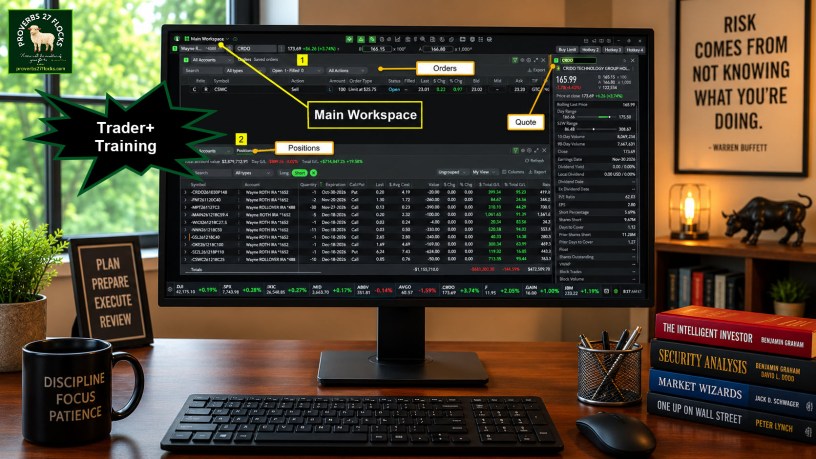
Tools Reduce Difficulty and Save Time
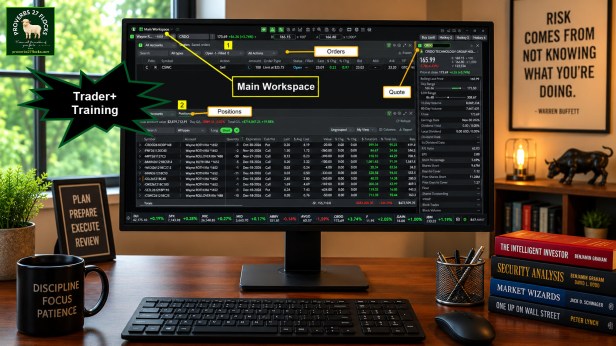
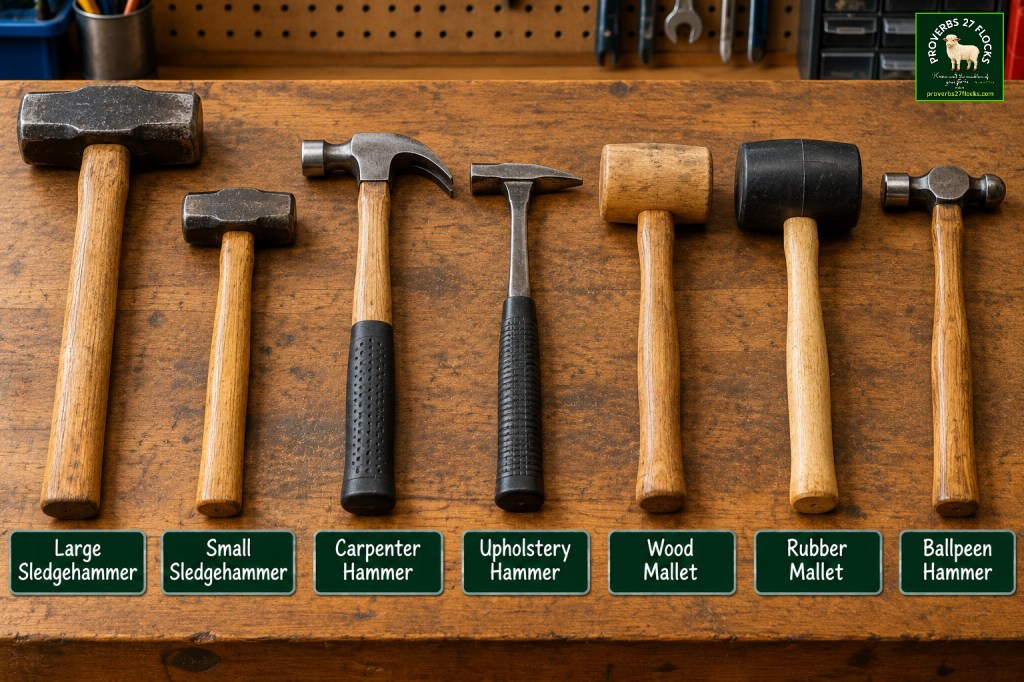
When I pick a tool from my workshop, the tool is chosen based on the job that needs to be done. I have a dozen different hammers, but I don’t use them interchangeably. Rather, if I need to do some heavy pounding I will pick one of a couple of sledgehammers. If I need a softer touch, I will use the rubber mallet. If I need to drive nails, I will use a carpenter’s hammer.
The same is true in the world of investing. Fidelity’s ATP tool was good and useful. However, the new Trader+ is far better and offers some great tools for the beginner and for advanced traders. It doesn’t take long to learn what the tool can do and how to use it.
Trader+ Training Modules
The nice thing about the Fidelity Trader+ training modules is that they are no more than four minutes long. Here are the five that you can explore:
- How to set up Fidelity Trader+® Desktop
- Placing and updating orders on Fidelity Trader+® Desktop
- Options trading on Fidelity Trader+® Desktop
- Using charts on Fidelity Trader+® Desktop
- Using trading tools on Fidelity Trader+® Desktop
Here is a link to the training page: Fidelity Trader+ Desktop
My Trader+ Setup
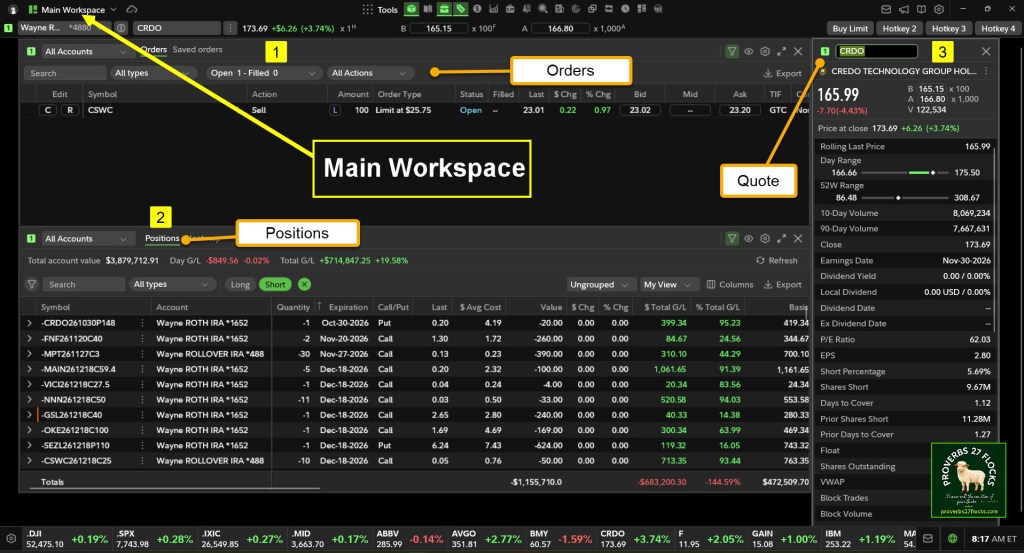
I have two default layouts that I think of as two ways to operate. The first is my primary trading layout. It is called “Main Workspace.” It shows my orders, positions, and quote information. The following image shows what it looks like this morning. Because I have other tools enabled, I can click on any tool on the top center to see my account balances, to see a chart, to set an alert, or to open a watchlist. Those are just some of the helpful tools.
The second default layout I named Quote-Positions-Options. The window on the left side is the Quote. The quote is looking at ticker symbol CRDO. To the right of that is the “Real-time” view of actual CRDO trades that are being completed before the stock market opens. This will continue throughout the trading day.
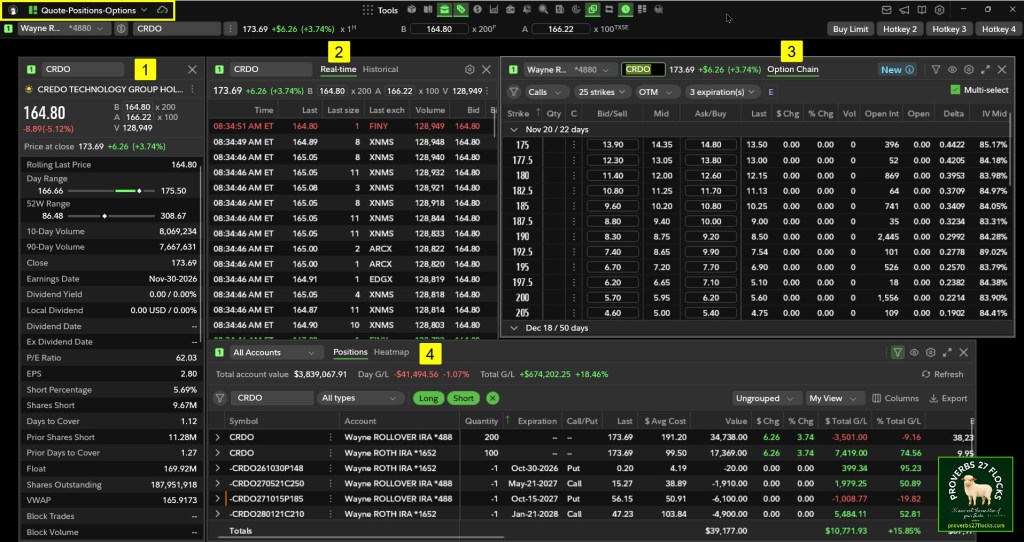
To the right of that is the “Option Chain” window. This is the window I can use to trade options contracts. I have set it up to look at CRDO Call contracts that are OTM (out of the money.)
On the bottom half of the screen is the “Positions” window. I have selected ticker symbol CRDO and want to see both my “long” and “short” positions. The long positions are the shares I own in CRDO in my traditional and ROTH IRA accounts. The short positions are the options contracts in those same two accounts. Two of the contracts are PUT contracts and two are CALLs.
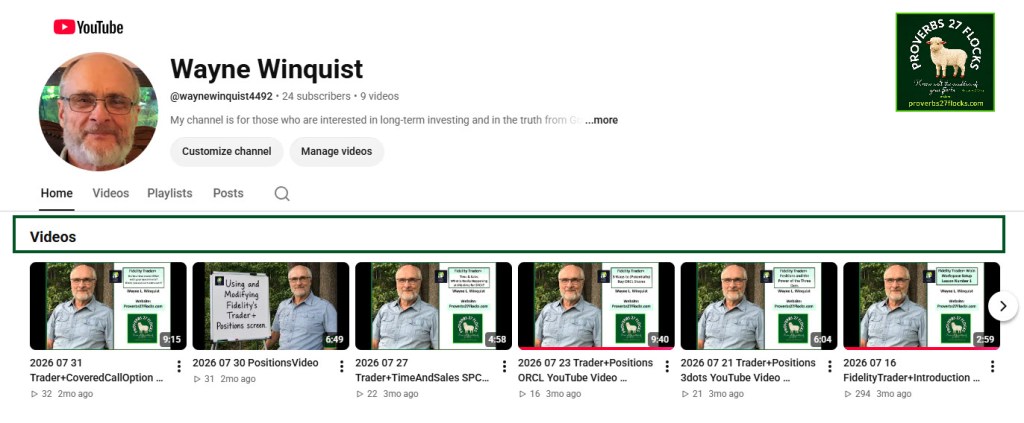
I have also created some YouTube videos about how I use Trader+. Here I a link to my channel. Wayne’s YouTube
Seeking Alpha Subscription Information
In addition to Trader+, of all of the resources I use, the most helpful is Seeking Alpha Premium. The Seeking Alpha QUANT rating is a huge factor in my investment success. If you decide to explore a Seeking Alpha subscription, please use the following link. Seeking Alpha

SEEKING ALPHA INFORMATION AND Types of SUBSCRIPTIONS
There are several ways to subscribe to Seeking Alpha services. I use the “Seeking Alpha Premium” service. The other ones are 1) Alpha Picks, 2) Bundle Premium and Alpha Picks, and 3) Quant Growth and Income. The links for the promotions are on each of these four choices. I highly recommend “Seeking Alpha Premium” as a place to start.
You can also scan this QR Code to get the same information about Seeking Alpha Premium.
Past performance does not guarantee future results, Seeking Alpha does not provide personalized advice, and it is not a registered investment adviser.
We accept advertising compensation from companies that appear on our site. This website represents my opinions, which may not reflect those of Seeking Alpha, and does not constitute an investment recommendation or advice.
If you have any questions or problems getting connected to Seeking Alpha, reach out to them with this email address: subscriptions@seekingalpha.com

