
Before and After
My eyes aren’t quite what they used to be. Even as a teen I had blurry vision, and it certainly isn’t any better at age 75. Therefore, when software lets me customize the colors and font sizes, I take advantage of those features. Before I go any further with the Trader+ training, I thought I would share my revised Trader+ desktop.
The Black Background Setup
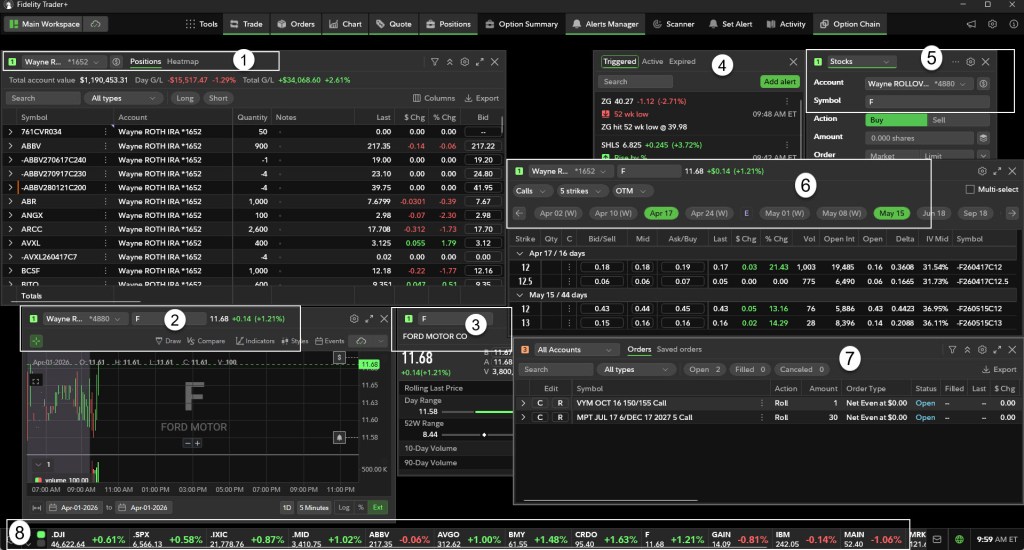
The default desktop was black, and I had set it up with some windows that I thought I would use frequently. These windows are somewhat similar to my Active Trader Pro setup, with some exceptions. Here is the black layout.
The White Background Setup
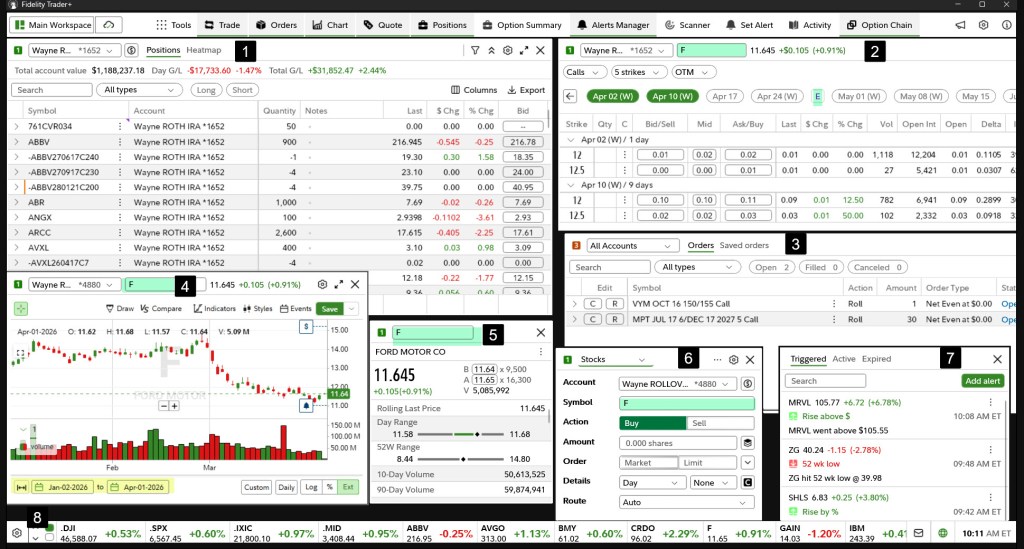
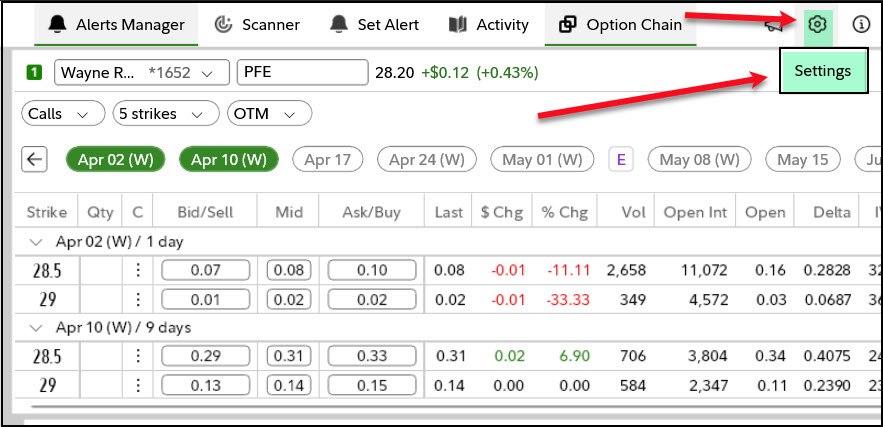
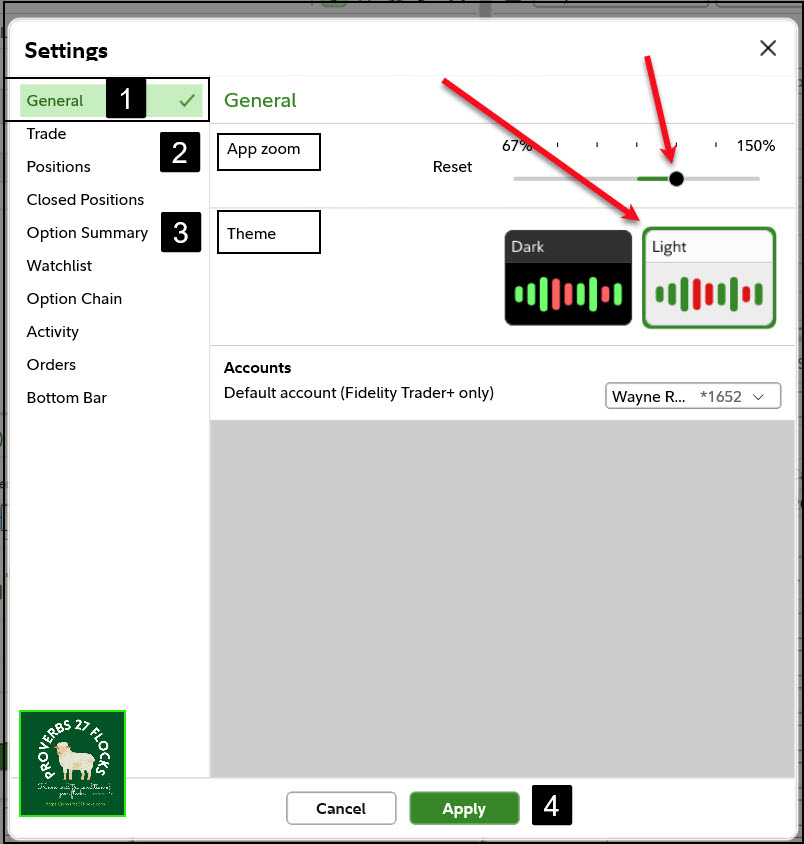
After playing with the settings and moving windows around, my Trader+ environment looks like this. I like the white background better, as I think it is easier on the eyes. You can change this in settings, and after shutting the app down and restarting it you get the white background.
The Eight “Windows” I Chose
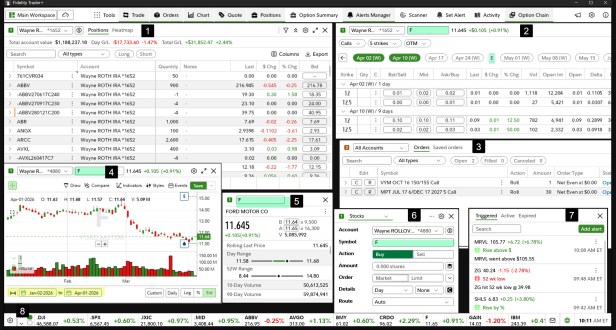
To keep this simple, I won’t describe everything about each window. It is easy to add windows from the top toolbar of the application. The tools I want to use are Trade, Orders, Chart, Quote, Positions, Alerts Manager and Option Chain. The eighth item is the ticker symbols I want to watch on the bottom of the Trader+ desktop. These will change over time, but it is a good place to start.
I numbered the windows and will briefly describe each one. Notice first of all, that four of the windows are all looking at ticker symbol “F” for our Ford investments. If I change the ticker symbol in any box that has a green “1”, then all of the green “1” windows change. This is a feature that I used in ATP and I like it.
Window 1: Wayne’s ROTH IRA POSITIONS
This is a very helpful window. I have a lot of investments in my ROTH and traditional IRA accounts, so being able to see all of them is helpful. In addition, if I enter a ticker symbol in the SEARCH box on this window, it will show me only those investments. This includes open option contracts. I like this better than the ATP positions window. I can also change from “All Accounts” to my “Retirement” accounts to see just my ROTH and traditional IRA accounts. If I choose “Cindie Winquist” I will see all related investments in her three Fidelity accounts. This is something I setup on the Fidelity.com website view.
Window 2: Option Contracts
Because this window is linked, it automatically shows me options contracts for Ford. Ford has weekly options contracts, as can be seen by the dates across the top of this window. Also notice the “E” between April 24 and May 1. This is a helpful reminder that Ford will be reporting earnings before May 1.
Window 3: Orders
Because I selected “All Accounts” for this window, I can see that I have two open orders. Both of them are covered call option rolls that I would like to execute. It isn’t likely that they will, but hope springs eternal. I could click on the “R” to revise the order or “C” to cancel the order if I decided to abandon those trades.
Window 4: Chart
It is helpful to see how an investment has gone up, down or sideways in price. I decided to set it up to show me prices from the beginning of 2026. The area shaded in yellow is where you can change the dates. Sometimes it is best to just look at the last three months.
Window 5: Quote
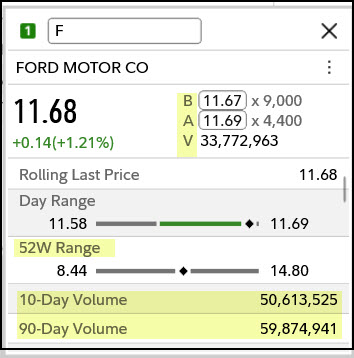
The Quote window tells me some information about Ford’s stock including today’s price range and the 52-week range. It also shows the Bid (B), Ask (A), and today’s trading volume (V). I also like to see what Ford’s trading volume has been for the last ten and 90 days. Heavily traded stocks are good ones for options trading.
Window 6: Trade
If I want to buy or sell Ford shares, I can accomplish that on this window. I set the defaults for this screen in the setup.
Window 7: Alerts
Alerts help me know about major up and down movements in a stock. For example, I am watching MRVL, so I want to know if it goes up or down dramatically.
Window 8: Bottom Bar
There are some ticker symbols that I want to see along the bottom of the Trader+ desktop. These can be changed at any time by selecting the gear next to the bottom bar. So, for example, I set mine up to show me the DJIA, SPX, IXIC indices. I also want to watch stocks like ABBV, AVGO, and BMY.
Why Bother with Your Own Setup?
If you want to be efficient and aware during the times you are buying or selling investments or trading options contracts, then creating an environment conducive to those efforts is sensible. Think about your home. Different rooms have different purposes. You wouldn’t think of cooking in the bathroom or sleeping in the kitchen. However, it is nice to have all of those rooms in close proximity.
Seeking Alpha Subscription Information
Of all of the resources I use, the most helpful is Seeking Alpha. The QUANT ratings is especially helpful for avoiding terrible investments. If you decide to explore a Seeking Alpha subscription, please use the following link. Seeking Alpha

SEEKING ALPHA INFORMATION AND SUBSCRIPTION
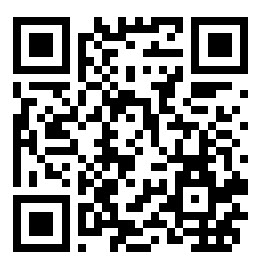
You can also scan this QR Code to get the same information.
Past performance does not guarantee future results, Seeking Alpha does not provide personalized advice, and it is not a registered investment adviser.
We accept advertising compensation from companies that appear on our site. This website represents my opinions, which may not reflect those of Seeking Alpha, and does not constitute an investment recommendation or advice.
If you have any questions or problems getting connected to Seeking Alpha, reach out to them with this email address: subscriptions@seekingalpha.com
 Know Your Flocks & Herds