
Be Wary and Aware
One of my Milwaukee friends recently asked me about an email he saw in his in box. Given the nature of the email, I suggested a couple of simple steps to see who was sending him the message. The name that you see in GMAIL’s list of messages might look legitimate, but it can be a scam. Even before you open the email there are a couple of things to call into question.
For example, in the last couple of days I have seen message I sent to myself. However, even though I sometimes do that as a reminder about something, this one was not one of those. The sender was “Waynelwinquist.” The first time I saw it I was a bit concerned, as it said, “Your photos will be deleted.” I have a cloud-based account to store photos, so I wondered if there was an issue with that subscription.
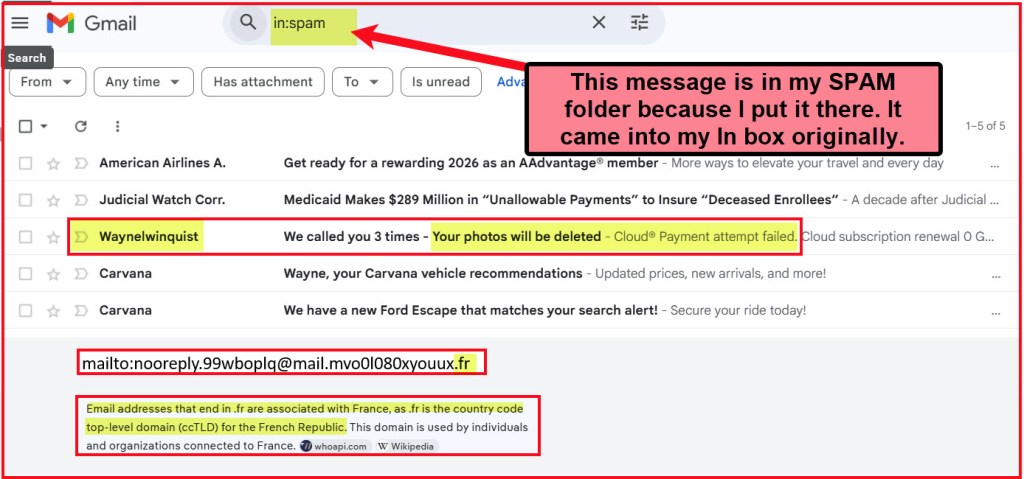
The best way I have found to determine who is really sending the message is to hover over the “Waynelwinquist.” When I do that I can see a partial name: nooreply.99wboplq@mail…” That is usually enough for me to see that it is a phishing attempt.
What is Phishing?
Phishing is a type of cyber-attack where scammers trick individuals into revealing sensitive personal information, such as passwords or credit card numbers, by pretending to be a trustworthy source through emails, texts, or websites. It often involves deceptive messages that encourage victims to click on links or provide information that can be exploited.
Another Step Can Help
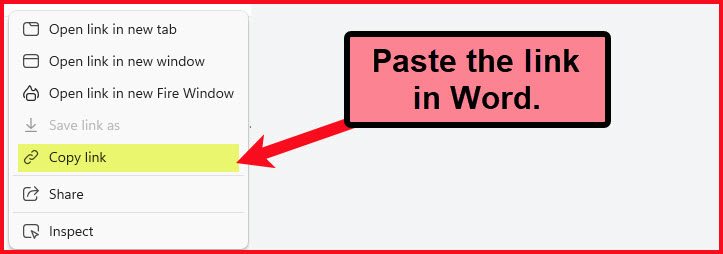
If you hover over the sender’s name, you will see a popup of the email address. Then, if you right-click on the email address, you can make a copy of it and paste it into a Word document for examination. Here is what “nooreply” really looks like:
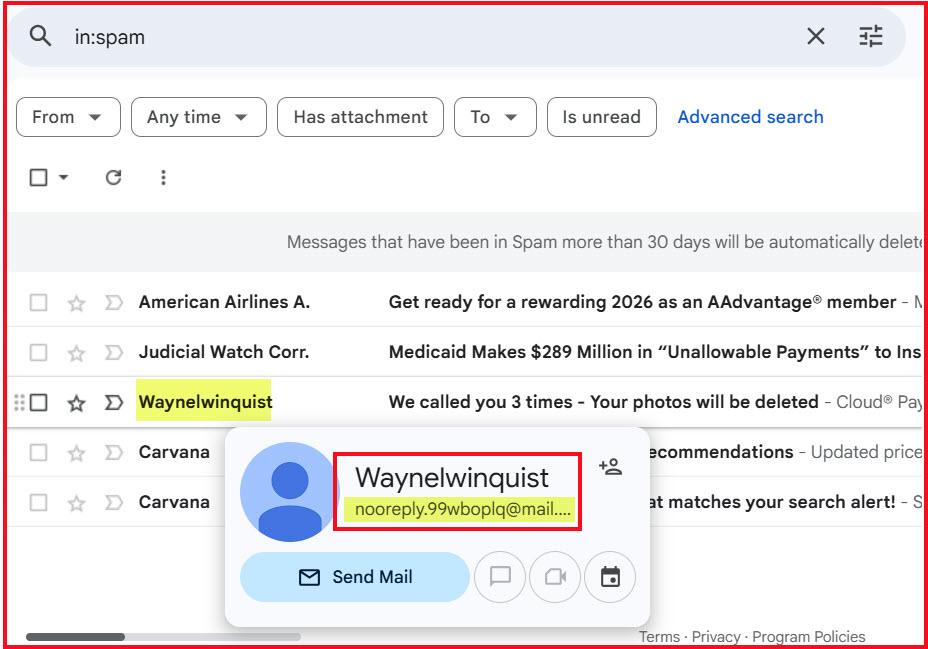
mailto:nooreply.99wboplq@mail.mvo0l080xyouux.fr
The country with the domain name “fr” is France. You can also see that the sender is gobbledygook: “mvo0l080xyouux.”
Before Opening an Email
Before opening an email message, especially if it’s from an unfamiliar sender, there are several important precautions to take to protect yourself from potential threats such as phishing or malware.
Key Precautions to Take

Check the Sender’s Address Verify the sender’s email address to ensure it is legitimate and not a spoofed or random account.
Read the Subject Line Assess if the subject line seems suspicious or unusual compared to previous communications.
Look for Red Flags Be cautious of grammar or spelling mistakes, generic greetings (e.g., “Dear Customer”), or requests for sensitive information.
Review the Preview Many email services provide a preview of the email content; use this to gauge if it looks suspicious before opening it.
Use Security Software Ensure your antivirus and anti-malware software are active and up-to-date to help detect potential threats.
Avoid Clicking Links Don’t click on any links or download attachments until you verify the email is safe.
Examples of Suspicious Email Messages
Phishing Emails Often impersonate legitimate entities to steal personal information (e.g., bank or government).
Unsolicited Offers: Claims of winning a lottery, prize, or investment opportunity without any prior engagement.
Urgent Requests: Demand immediate action or response, often accompanied by threats (e.g., account suspension).
Too Good to Be True: Offers that seem excessively beneficial, such as guaranteed high earnings with minimal effort.
Generic Greetings: Use of vague salutations like “Dear Customer” instead of your name, indicating a bulk email.
Requests for Personal Information: Emails asking for sensitive data (passwords, Social Security numbers) should always be viewed skeptically.
Strange Email Addresses: Look for misspellings or unusual domain names that do not match the company’s official address.
Links and Attachments: Emails containing suspicious links or attachments, particularly from unknown sources.
Red Flags to Watch For
Many scam emails contain numerous spelling or grammar errors, unprofessional language, or awkward phrasing. Avoid opening emails from unrecognized senders or those requiring unusual explanations for contacting you. Finally, don’t be alarmed by pressure tactics. The sense of urgency, threatening language, or claims that you must act quickly to avoid consequences. Legitimate messages don’t do that 99% of the time.
 Know Your Flocks & Herds
Great reminder about emails. While having several email accounts, I have reverted to using Outlook (desktop version) as my primary method for viewing email. The reason is that there is an option under Junk email for Safe Lists Only : Only mail from people or domains on your Safe Senders List. So, set it and initially a lot of emails will go to your spam/junk/bulk folder, but as you review these messages you can add them to your safe senders list. It took time, but over the course of 3 months my inbox is way safer and cleaner than before. The only drawback is that when I’m mobile, either I have to leave my desktop computer on so outlook is running and filtering email since it syncs to yahoo, etc., or take a little extra time when on the road to not click any links or open email from unknown senders. I’ve asked Yahoo several times over the years to include a filter that sends everything to spam unless they are in your contact list, so far, nothing
LikeLiked by 1 person
It would be nice if GMAIL offered a Safe Senders List! So many different ways to keep the criminals at bay!
LikeLike
I had a particularly nasty one this week purporting to be an attached document from Social Security. Flags were sender and the message that it had to be opened on a Windows machine.
This is the time of year people will click on things that pertain to Social Security.
LikeLike
Yes, the Social Security, IRS, banking, and credit card scams are frequently in either my email or text messages. They keep trying. I hope I don’t lose my marbles.
LikeLike